Background Jobs
If you run things interactively (e.g. calling a program directly, running a script), disconnecting from your terminal session will prematurely terminate the program/script. Why would you disconnect?
- accidentally close the terminal window
- computer shuts off unexpectedly
- internet outtage So, there are best-practices to make sure that programs will continue to run in the event of unexpected disconnections.
with nohup
- Run commands in the background (i.e. so that you can disconnect and the process will continue running) using
nohup. For example, a process normally run with the command:
program argument1 argument2would be run with:
nohup program argument1 argument2 >& logfile.nohup &Output normally printed to the screen would be printed to logfile.nohup.
with screen or tmux
An alternative is to use either screen or tmux, which are virtual emulators. These are persistent virtual sessions that can
be entered/exited at will and wont terminate programs when you step out of it or get disconnected from it. For simplicity, we’ll just cover screen:
screen -S NAME_OF_SCREENwhere NAME_OF_SCREEN is whatever descriptive name you want, like variantcall etc. It will create
a fresh terminal session onscreen (all existing terminal text will vanish) using your account’s default
login shell (BASH, likely). After that, activate any conda/mamba/etc environments if needed and run
programs as you normally would. At any point, you can press CTRL + a then d (+ being “and”,
not the actual + key). This will “detatch” the screen session. You can reattach the screen using
screen -r NAME_OF_SCREENmaking screen nicer
By default, screen is just a barebones virtual window and that sometimes gets tricky when you have multiple
screens open, or don’t know if you’re in a screen, etc. Conveniently, screen can be customized, and for
convenience, you can create the file ~/.screenrc and populate it with this config:
# GNU Screen - main configuration file
# All other .screenrc files will source this file to inherit settings.
# Author: Christian Wills - cwills.sys@gmail.com

# Allow bold colors - necessary for some reason
attrcolor b ".I"

# Tell screen how to set colors. AB = background, AF=foreground
termcapinfo xterm 'Co#256:AB=\E[48;5;%dm:AF=\E[38;5;%dm'

# Enables use of shift-PgUp and shift-PgDn
termcapinfo xterm|xterms|xs|rxvt ti@:te@

# Erase background with current bg color
defbce "on"

# Enable 256 color term
term xterm-256color

# Cache 30000 lines for scroll back
defscrollback 30000

hardstatus alwayslastline
# Very nice tabbed colored hardstatus line
hardstatus string '%S  %{= Kd} %{= Kd}%-w%{= Kr}[%{= KW}%n %t%{= Kr}]%{= Kd}%+w %-= %{KG} %H%{KW}|%{KY}%101`%{KW}|%D %M %d %Y%{= Kc} %C%A%{-}'

# Hide hardstatus: ctrl-a f
bind f eval "hardstatus ignore"
# Show hardstatus: ctrl-a F
bind F eval "hardstatus alwayslastline"

shell "/usr/bin/zsh"
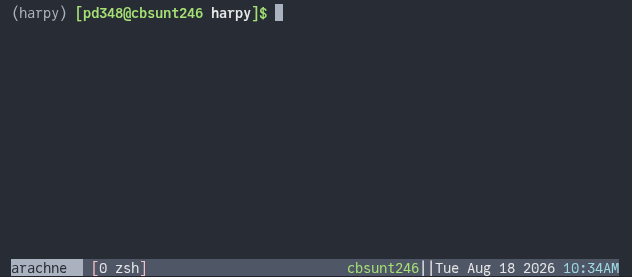
By doing so, it will create a marquee at the bottom indicating what host you’re on, the screen title, time, etc.
It’s very handy and highly recommended. It will look something like this: